How to Use Google Gemini: A Beginner’s Guide to Getting Better Results
If you’re wondering how to use Google Gemini, the good news is that getting started is much easier than most people expect. Google Gemini can answer questions, summarize documents, help with writing, generate ideas, explain complex topics, assist with coding, and even work alongside Gmail, Google Docs, and other Google services. The key isn’t simply opening Gemini it’s learning how to ask better questions and use its features effectively.
Whether you’re a student, professional, content creator, or someone completely new to AI, this guide will show you how to use Google Gemini step by step while avoiding the common mistakes that prevent beginners from getting useful answers.
How to Use Google Gemini: Quick Answer
If you only need the basics, follow these steps.
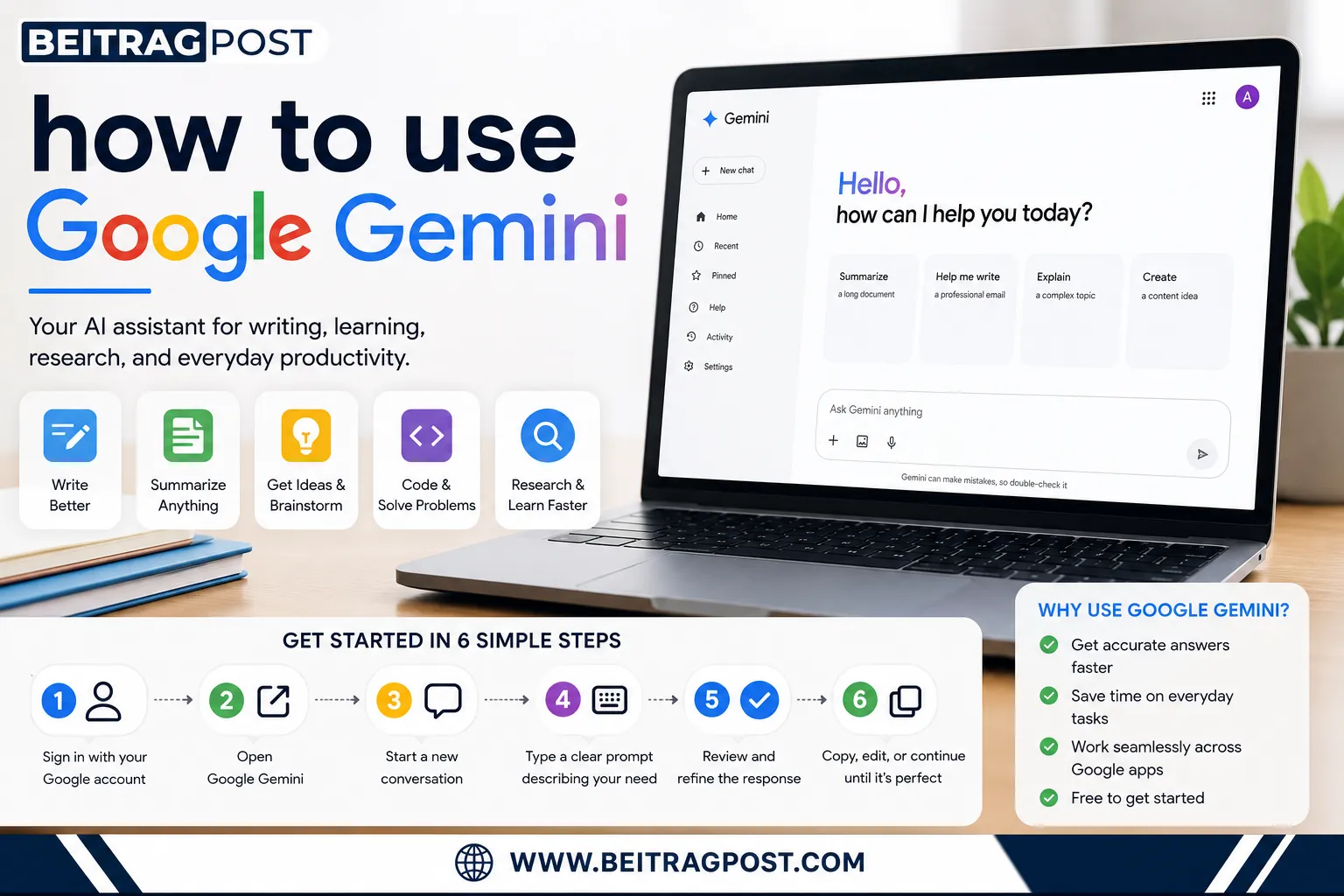
- Sign in with your Google account.
- Open Google Gemini.
- Start a new conversation.
- Type a clear prompt describing what you need.
- Review the response.
- Refine your prompt if necessary.
- Copy, edit, or continue the conversation until you get the result you want.
That’s enough to begin, but learning a few extra techniques will dramatically improve the quality of Gemini’s responses.
Before You Use Google Gemini, Understand What It Does Best
Many beginners expect Gemini to work like a search engine.
It doesn’t.
Google Search helps you find information.
Google Gemini helps you understand information, generate ideas, solve problems, summarize content, brainstorm, write, and organize your thoughts through conversation.
Knowing that difference helps you ask better questions from the very beginning.
If you’re still deciding which AI assistant fits your workflow, our detailed comparison of ChatGPT vs Google Gemini explains the strengths, weaknesses, and ideal use cases for each platform.
Create Your Google Gemini Account
Getting started takes only a few minutes.
Step 1: Sign In
Visit Gemini using your Google account.
If you’re already signed into Gmail, YouTube, or another Google service, you can usually access Gemini without creating a separate account.
Step 2: Accept the Terms
The first time you open Gemini, Google may ask you to review and accept its terms of service.
After that, you’ll arrive at the main chat interface.
Step 3: Start Your First Conversation
Click the text box and type your first prompt.
There’s no complicated setup.
You simply describe what you want Gemini to help you with.
For example:
- Explain quantum physics in simple language.
- Summarize this article.
- Write a professional email.
- Create a weekly study plan.
- Suggest travel destinations under a specific budget.
The clearer your instructions, the better Gemini’s response becomes.
How to Use Google-Gemini More Effectively
Most people use less than 20% of what Gemini can actually do.
Here are the habits that produce better results.
Give Clear Instructions
Avoid short prompts like:
“Write something.”
Instead, explain exactly what you need.
For example:
“Write a friendly 300-word introduction for a beginner’s guide about digital marketing.”
The additional context helps Gemini generate far more useful responses.
Ask Follow-Up Questions
You don’t need to start over every time.
Continue the same conversation.
Ask Gemini to simplify an answer, expand certain sections, rewrite the tone, or provide additional examples.
That conversational workflow usually produces much stronger results than writing one long prompt and hoping it’s perfect.
What Can You Use Google Gemini For?
Google Gemini is flexible enough to help with a wide range of everyday tasks.
People commonly use it for:
- Writing emails
- Summarizing documents
- Brainstorming ideas
- Learning difficult topics
- Planning projects
- Coding assistance
- Language translation
- Research support
- Content creation
- Productivity
If you’re interested in exploring more beginner-friendly AI assistants alongside Gemini, our guide to 10 Best AI Tools for Beginners compares the most useful tools for writing, research, design, productivity, and everyday work.
Best Prompts to Use With Google Gemini
Learning how to use Google Gemini isn’t just about opening the app. The quality of your prompts directly affects the quality of the answers you receive.
Instead of asking vague questions, provide context, explain your goal, and specify the format you want.
Weak Prompt
“Write about marketing.”
Better Prompt
“Write a 500-word beginner-friendly article explaining digital marketing for small business owners. Use simple language, practical examples, and short paragraphs.”
The second prompt gives Gemini enough context to produce a far more useful response.
Pro Tip: Treat Gemini like an assistant rather than a search engine. The more specific your instructions, the better the results.
How to Use Google Gemini for Writing Tasks
One of the biggest reasons people learn how to use Google Gemini is to speed up writing without sacrificing quality.
Gemini can help you:
- Draft emails
- Write blog outlines
- Brainstorm headlines
- Rewrite difficult paragraphs
- Summarize long documents
- Generate social media captions
- Explain complex topics in simple language
The best approach is to use Gemini for your first draft, then review and personalize the content before publishing or sending it.
How to Use Google Gemini for Research
Gemini is also useful when you’re learning a new topic.
Instead of asking for a simple definition, ask it to explain concepts step by step.
For example:
- Explain blockchain like I’m 15 years old.
- Compare electric cars with hybrid cars.
- Summarize the causes of climate change in bullet points.
- Explain machine learning using everyday examples.
Using follow-up questions allows you to dig deeper without starting a new conversation each time.
How to Use Google Gemini Inside Google Workspace
One of Gemini’s biggest advantages is its integration with Google’s ecosystem.
If you already use Gmail, Google Docs, Sheets, or Drive, Gemini can help you complete everyday tasks much faster.
Gmail
Gemini can:
- Draft professional emails.
- Rewrite messages in different tones.
- Summarize long email threads.
- Suggest quick replies.
Google Docs
Inside Docs, Gemini helps you:
- Create outlines.
- Expand ideas.
- Rewrite paragraphs.
- Summarize reports.
- Generate first drafts.
Google Sheets
Gemini can assist with:
- Creating formulas.
- Explaining spreadsheet functions.
- Organizing data.
- Identifying trends.
- Building simple tables.
For professionals already using Google Workspace every day, these integrations save significant time on repetitive tasks.
Free vs Gemini Advanced
Many beginners wonder whether the free version is enough.
For most users, the answer is yes.
Free Version
Best for:
- Everyday questions
- Writing assistance
- Brainstorming
- Research
- Learning
- Basic productivity
Gemini Advanced
Best for:
- Professionals
- Large document analysis
- Advanced reasoning
- More powerful AI models
- Heavy daily workloads
If you’re only learning how to use Google Gemini, start with the free version and upgrade only when you consistently reach its limits.
Common Mistakes Beginners Make When Using Google Gemini
Even though Gemini is easy to use, many beginners make the same mistakes.
Asking Questions That Are Too Broad
Short prompts usually produce generic answers.
Adding context almost always improves the response.
Expecting Perfect Answers Every Time
AI can occasionally misunderstand your request or provide outdated information.
Always review important facts before relying on them for work, study, or business decisions.
Starting a New Chat Too Often
Gemini remembers the current conversation.
Instead of opening a new chat after every response, continue asking follow-up questions to refine the result.
Copying AI Responses Without Editing
Gemini is designed to help you work faster—not replace your own judgment.
Review, personalize, and fact-check important content before publishing or sharing it.
Real-World Examples of How to Use Google Gemini
The best way to understand Gemini is to see how different people use it in everyday situations.
| User | Example Task |
|---|---|
| Student | Summarize lecture notes and explain difficult concepts. |
| Blogger | Generate article ideas, outlines, and content drafts. |
| Small Business Owner | Write product descriptions and marketing emails. |
| Job Seeker | Improve resumes and prepare interview answers. |
| Developer | Explain code, debug errors, and generate snippets. |
| Teacher | Create quizzes, lesson plans, and classroom activities. |
As you become more comfortable using Gemini, you’ll discover that combining multiple prompts and refining responses produces much better results than expecting a perfect answer on the first attempt.
Tips to Get Better Results with Google Gemini
Once you understand how to use Google Gemini, a few simple habits can dramatically improve the quality of every response.
Be Specific About Your Goal
Instead of saying:
“Help me write an email.”
Try:
“Write a friendly follow-up email to a client after a project meeting. Keep it under 150 words and end with a clear call to action.”
The more details you provide, the more useful Gemini’s response becomes.
Give Gemini Context
Don’t assume Gemini knows exactly what you’re trying to achieve.
Mention:
- Your audience
- Desired tone
- Word count
- Purpose
- Preferred format
This extra context usually produces much more accurate results.
Refine Instead of Restarting
Many beginners open a new conversation whenever they’re unhappy with the first answer.
A better approach is to continue the same chat.
Ask Gemini to:
- simplify the explanation
- make it more professional
- shorten the response
- add examples
- rewrite it for beginners
This conversational approach often delivers much stronger results.
Always Review Important Information
Google Gemini is an excellent assistant, but it isn’t perfect.
Before using AI-generated content for work, business, academic projects, or important decisions, verify facts and review the final output.
Think of Gemini as a productivity partner not a replacement for your own judgment.
Is Google Gemini Worth Using?
For most people, yes.
If you already use Gmail, Google Docs, Google Drive, or other Google services, Gemini fits naturally into your daily workflow and can save a significant amount of time.
It’s especially useful for:
- Students learning new subjects.
- Professionals writing emails and reports.
- Bloggers and content creators brainstorming ideas.
- Small business owners creating marketing content.
- Developers looking for coding assistance.
- Anyone who wants quick explanations or productivity support.
The free version is powerful enough for most beginners, making it an easy way to explore AI without paying for a subscription.
Frequently Asked Questions About How to Use Google Gemini
Is Google Gemini free to use?
Yes.
Google Gemini offers a free version that includes many of its core AI features. For most beginners, the free plan is more than enough to learn how to use Google Gemini and complete everyday tasks.
Do I need to download Google Gemini?
No.
You can use Gemini directly through your web browser after signing in with your Google account. Mobile apps are also available for supported devices if you prefer using AI on your phone.
Can Google Gemini write articles and emails?
Yes.
Gemini can help write blog posts, emails, reports, outlines, social media captions, and many other types of content.
However, reviewing and personalizing the final version is always recommended.
Is Google Gemini better than ChatGPT?
It depends on what you need.
Gemini integrates exceptionally well with Google’s ecosystem, while ChatGPT is often preferred for creative writing, brainstorming, and conversational assistance.
Choosing between them depends on your workflow rather than declaring one universally better.
Can Google Gemini answer questions from uploaded documents?
Yes.
Depending on the available features in your version, Gemini can analyze supported documents, summarize information, explain difficult sections, and answer questions about uploaded files.
Final Verdict
Learning how to use Google Gemini doesn’t require any technical experience. Once you understand how to write clear prompts, provide context, and refine responses through follow-up questions, Gemini becomes much more than a chatbot—it becomes a practical assistant for learning, writing, research, planning, and everyday productivity.
For beginners, the free version offers more than enough features to get started. As your needs grow, you can decide whether Gemini Advanced is worth the upgrade. The most important step isn’t buying a premium plan—it’s developing good prompting habits that help you get accurate, relevant, and useful responses every time.
Whether you’re using AI for school, work, business, or personal projects, investing a little time in learning how to use Google Gemini will help you work faster and make better use of Google’s growing AI ecosystem.
Key Takeaways
- Google Gemini is easy to learn, even for complete beginners.
- Clear, detailed prompts produce better responses.
- Follow-up questions improve results without starting a new chat.
- Gemini integrates seamlessly with Gmail, Docs, Sheets, and Drive.
- The free version is sufficient for most everyday tasks.
- Always review AI-generated content before using it for important work.